Clipboard Manager on Ubuntu-Based Linux
Install and choose a clipboard history manager on Ubuntu 24.04-based distros: Windows 11 Clipboard History for a Windows-like workflow, CopyQ for power users, and CrossPaste for cross-device sync.
What This Guide Achieves
By the end of this guide you will know how to:
| Goal | Status |
|---|---|
| Pick a clipboard manager that fits your workflow | Covered |
| Install a Windows-like clipboard history app on Ubuntu-based Linux | Covered |
| Understand when CopyQ is the better choice | Covered |
| Understand when CrossPaste is useful | Covered |
| Configure a Windows-style clipboard shortcut | Covered |
| Avoid common privacy and Wayland/X11 pitfalls | Covered |
| Remove each app cleanly if it does not fit | Covered |
The Problem
Windows 10 and Windows 11 have a very convenient clipboard history panel. You press Win+V, see recent copied items, search visually, and paste the one you want.
On Ubuntu-based Linux, the basic clipboard works, but a full clipboard history panel is not always included by default. That means:
- copying a new item can replace the old one
- you may lose text you copied a minute ago
- you may need to jump back to another app just to copy the same thing again
- screenshots, links, code snippets, and repeated text become harder to manage
A clipboard manager fixes this by keeping a searchable history of what you copy.
Quick Recommendation
For a Windows-style workflow, start with Windows 11 Clipboard History for Linux.
It is the closest match if your goal is:
- a Windows-like clipboard history panel
- a simple visual interface
- a global shortcut similar to Win+V
- local/offline clipboard history
- less configuration than CopyQ
Use CopyQ if you want the most mature power-user tool.
Use CrossPaste if you specifically want clipboard sharing across multiple devices.
Comparison
| App | Best For | Install Style | Strength | Tradeoff |
|---|---|---|---|---|
| Windows 11 Clipboard History for Linux | Windows-like clipboard history | Upstream installer / package repo | Simple, visual, familiar | Newer project; package source is outside Ubuntu repos |
| CopyQ | Power users, scripting, tabs, editing | Ubuntu package / PPA / Flatpak | Mature and feature-rich | Interface can feel heavier |
| CrossPaste | Cross-device clipboard sync | Download from upstream releases | Sync across devices with encryption focus | More complex than a local-only manager |
Privacy First
Clipboard managers store what you copy. That is the point, but it also means you should be careful.
Avoid leaving sensitive data in clipboard history:
- passwords
- API keys
- private keys
- bank details
- recovery codes
- personal documents copied from confidential files
If you use a password manager, prefer its built-in auto-clear feature and avoid copying secrets unless necessary.
If a clipboard manager supports excluding apps, exclude password managers, banking apps, and private browsers.
Clean System Control
Clipboard managers can come from Ubuntu packages, upstream installers, .deb downloads, or third-party repositories. Before choosing an install path, review the clean installation and removal best practices.
This matters more for clipboard tools than many apps because uninstalling can also remove saved clipboard history. Remove user data only when you are sure you do not need old copied items, snippets, or app settings.
Option 1 - Windows 11 Clipboard History for Linux
Project links:
This is the main recommendation if you miss the Windows clipboard history experience. The project is built with Rust, React, Tauri, and GTK, and its goal is to provide a native-feeling Windows 11-style clipboard panel for Linux.
The upstream site describes the app as local and private: clipboard history stays on your machine rather than syncing through a cloud service.
Before Installing
Make sure your system is up to date:
sudo apt update
sudo apt upgrade
Install basic tools that are commonly needed for third-party installers:
sudo apt install curl ca-certificatesRecommended Install Flow
The project publishes a one-command installer. Because that command downloads and runs a script, inspect it first instead of piping directly into bash.
Download the installer script:
curl -fsSL https://raw.githubusercontent.com/gustavosett/Windows-11-Clipboard-History-For-Linux/master/scripts/install.sh -o /tmp/install-clipboard.shInspect it:
less /tmp/install-clipboard.shRun it only if you are comfortable with what it does:
bash /tmp/install-clipboard.shThe upstream quick command from the GitHub README is:
curl -fsSL https://raw.githubusercontent.com/gustavosett/Windows-11-Clipboard-History-For-Linux/master/scripts/install.sh | bashThe project website also shows this short installer command:
curl -sL http://install-clipboard.gustavosett.dev | bashThat is convenient, but the inspect-first flow is better practice when installing from a third-party script.
Manual APT Repository Install
The project README also documents a Debian/Ubuntu/Mint/Pop!_OS install path using the upstream Cloudsmith APT repository.
Add the repository:
curl -1sLf 'https://dl.cloudsmith.io/public/gustavosett/clipboard-manager/setup.deb.sh' | sudo -E bashInstall the package:
sudo apt update && sudo apt install win11-clipboard-historyGrant the one-time input permission documented by the project:
sudo setfacl -m u:$USER:rw /dev/uinputIf setfacl is missing, install the ACL tool first:
sudo apt install aclThis APT route is useful if you prefer package-manager updates instead of rerunning the installer script.
Verify Installation
Check whether the package is installed:
apt policy win11-clipboard-historyCheck whether a command was installed:
command -v win11-clipboard-historyLook for the app in your launcher by searching:
ClipboardIf the app starts and begins capturing copied text, installation worked.
First Setup
After launching the app:
- Open the app settings.
- Confirm it starts automatically at login.
- Confirm the global shortcut.
- Use Super+V if you want the same muscle memory as Windows Win+V.
- Copy several text snippets and confirm they appear in history.
- Test search and paste behavior in a text editor.
On Linux keyboards, the Super key is usually the same physical key as the Windows key.
What to Test
Copy a few different item types:
plain text
https://ubuntu.com
sudo apt update
Then open the clipboard manager and confirm:
- the newest item appears at the top
- search finds older items
- selecting an item pastes it into the active app
- the shortcut works after restarting the desktop session
Wayland and X11 Notes
Clipboard behavior depends partly on the desktop session.
Check your session:
echo $XDG_SESSION_TYPEIf the app does not paste reliably on Wayland, test once on X11/Xorg before deciding the app is broken. Some Linux clipboard tools behave differently depending on Wayland permissions and desktop environment integration.
Remove It
If installed through the Debian package:
sudo apt remove win11-clipboard-historyIf you want to remove package configuration too:
sudo apt purge win11-clipboard-historyIf the installer added a third-party APT source, check:
ls /etc/apt/sources.list.d/Remove only the source file that clearly belongs to this app.
Then update APT:
sudo apt updateOption 2 - CopyQ
Project links:
CopyQ is the mature clipboard-manager option. It is less Windows-like visually, but it is powerful, scriptable, and available in Ubuntu 24.04 repositories.
Use CopyQ if you want:
- searchable clipboard history
- tabs and organization
- editing clipboard items before pasting
- global shortcuts
- command-line control
- scripting and automation
Install from Ubuntu Repositories
sudo apt update
sudo apt install copyq
Launch it:
copyqOr open it from your application launcher.
Optional Plugins
Ubuntu also packages CopyQ plugins.
sudo apt install copyq-pluginsPlugins can add support for extra item types and features such as tags, encryption, notes, and synchronization.
First Setup
Open CopyQ, then go to:
File -> PreferencesRecommended beginner settings:
| Setting | Recommendation |
|---|---|
| Autostart | Enable |
| Store clipboard | Enable |
| Maximum number of items | 200 to 1000 |
| Maximum item size | Keep default unless you copy many images |
| Global shortcut | Set one manually |
Good shortcut choices:
| Shortcut | Why |
|---|---|
Ctrl+Shift+V | Common clipboard-manager shortcut |
Super+V | Windows-like muscle memory |
Useful CopyQ Commands
Show CopyQ:
copyq showRead the latest clipboard item:
copyq read 0Add a text item to history:
copyq add "Reusable clipboard text"CopyQ is the better choice if you want your clipboard manager to become a lightweight snippet database.
The CopyQ upstream README notes that the main app must be running before its command-line interface can control clipboard history. If copyq read 0 returns nothing, start CopyQ first and copy a fresh test item.
Remove CopyQ
sudo apt remove copyq copyq-pluginsRemove user configuration only if you are sure you do not need saved clipboard history:
rm -rf ~/.config/copyq
rm -rf ~/.local/share/copyq
Option 3 - CrossPaste
Project links:
CrossPaste is not just a local clipboard history tool. Its main purpose is cross-device pasteboard sharing.
Use CrossPaste if you want:
- copy on one device and paste on another
- LAN-style cross-device clipboard sharing
- text, images, files, URLs, and other rich clipboard types
- encryption-focused local network syncing
- similar behavior across Linux, Windows, macOS, and mobile devices
Do not choose CrossPaste if you only want a simple local Win+V replacement. It is more powerful, but also more complex.
Install
Go to the latest release page:
https://github.com/CrossPaste/crosspaste-desktop/releases/latestDownload the Linux .deb package if one is available for your system.
Install it from your Downloads folder:
cd ~/Downloads
sudo apt install ./crosspaste*.deb
If the file name is different, adjust the command to match the downloaded package.
First Setup
After launching CrossPaste:
- Open the desktop app.
- Pair the devices you want to share clipboard data with.
- Confirm both devices are on the same trusted network.
- Test text copy first.
- Test images or files only after text sync works.
- Review storage and cleanup settings.
Cross-device clipboard sync is convenient, but it increases the privacy surface. Be careful before syncing sensitive clipboard content between work, personal, and mobile devices.
Nearby Devices Do Not Appear
CrossPaste uses DNS-SD/mDNS service discovery on the local network. If devices cannot find each other, the problem may be the router, firewall, multicast restrictions, or missing Linux discovery tools.
On Ubuntu-based systems, install Avahi tools:
sudo apt install avahi-utilsThen test whether the CrossPaste service is visible:
avahi-browse -r _crosspasteService._tcpIf this command finds devices but the app does not, the network discovery path is working and the remaining problem is likely inside CrossPaste configuration or the app itself.
Remove CrossPaste
Check the installed package name:
apt list --installed | grep -i crosspasteRemove it using the package name shown:
sudo apt remove crosspasteIf the package name differs, replace crosspaste with the exact installed package name.
Choosing the Right App
Choose Windows 11 Clipboard History for Linux if:
- you want the closest Windows clipboard-history feel
- you care more about simplicity than advanced features
- you want a modern visual panel
- you mostly work on one laptop
- you want the fastest transition from Windows habits
Choose CopyQ if:
- you want something mature and widely packaged
- you want advanced search, tabs, editing, and scripting
- you copy many code snippets, URLs, notes, and terminal output
- you want a tool available directly from Ubuntu repositories
Choose CrossPaste if:
- you work across several devices
- you want cross-device pasteboard sync
- you use Linux plus Windows/macOS/mobile devices
- you are comfortable configuring device pairing and sync behavior
Recommended Setup for This Guide
For a Windows-to-Linux migration, the clean starting path is:
- Install Windows 11 Clipboard History for Linux.
- Set the shortcut to Super+V.
- Use it for a week.
- If you need more organization, try CopyQ.
- If you need cross-device sharing, try CrossPaste.
Do not install all three at once. Multiple clipboard managers can fight over clipboard ownership, autostart, and shortcuts.
Troubleshooting
Shortcut Does Not Open the Clipboard Manager
Cause:
The shortcut is not registered, conflicts with the desktop environment, or another app already owns it.
Fix:
- Open the clipboard manager settings.
- Remove the shortcut.
- Add it again.
- If
Super+Vfails, tryCtrl+Shift+V. - Log out and log back in.
Clipboard History Is Empty
Cause:
The app is not running or clipboard monitoring is disabled.
Fix:
ps aux | grep -i clipboardThen launch the app again from the application menu.
For CopyQ:
copyqRed Broken Icon Appears in the Tray
On the tested Zorin OS 18.1 Pro setup, Windows 11 Clipboard History for Linux worked, but the system tray sometimes showed a red “missing image” placeholder instead of the app icon.
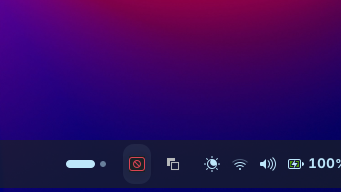
At first glance this can look like Do Not Disturb, but in this case it was not Do Not Disturb. It was a tray icon fallback: the app was running in the background, but the desktop panel could not display its tray icon correctly.
This is mostly cosmetic if the shortcut still works, but it is worth diagnosing because a frozen tray process can make the app harder to manage.
Step 1 - List registered tray items
Ubuntu-based distros with StatusNotifierItem (AppIndicator/Ayatana) tray support expose tray items through D-Bus. List the registered items:
gdbus call --session --dest org.kde.StatusNotifierWatcher --object-path /StatusNotifierWatcher --method org.freedesktop.DBus.Properties.Get org.kde.StatusNotifierWatcher RegisteredStatusNotifierItemsOn the tested system, the output included:
(<[':1.99@/org/ayatana/NotificationItem/tray_icon_tray_app_main_tray', ':1.111@/org/ayatana/NotificationItem/software_update_available']>,)The software_update_available item was the system updater. The generic tray_icon_tray_app_main_tray entry was the suspicious one.
Step 2 - Map the D-Bus item to a real process
Use the D-Bus address from the suspicious item. In this example it was :1.99:
ps -f -p $(busctl --user call org.freedesktop.DBus /org/freedesktop/DBus org.freedesktop.DBus GetConnectionUnixProcessID s ":1.99" | awk '{print $2}')On the tested system, this identified the app:
UID          PID    PPID  C STIME TTY          TIME CMD
mohsin     20158   19221  0 18:57 ?        00:01:11 /usr/bin/win11-clipboard-his
The command name was truncated in the ps output, but it clearly pointed to Windows 11 Clipboard History for Linux.
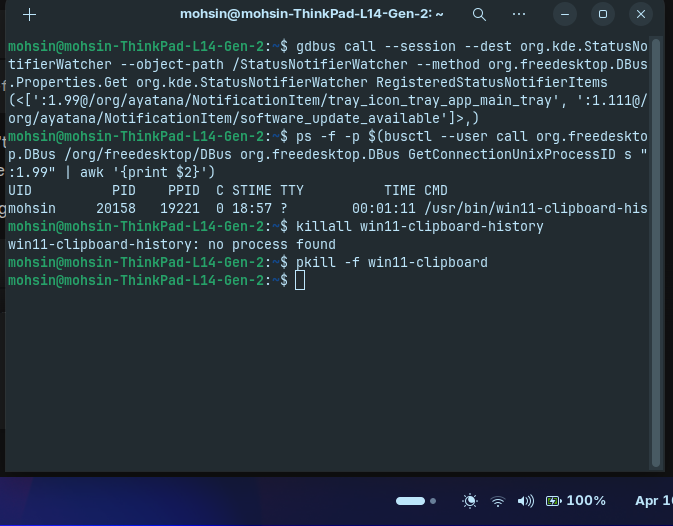
Step 3 - Stop the broken tray process
If clicking the tray icon does nothing, stop the clipboard manager by matching the process name:
pkill -f win11-clipboardIf the broken tray icon disappears immediately, you confirmed the culprit.
Step 4 - Find the exact command name
The binary name may be longer than the truncated ps output. List installed commands:
ls /usr/bin/ | grep win11On the tested system, the installed commands were:
win11-clipboard-history
win11-clipboard-history-bin
Step 5 - Relaunch it correctly
Launch it in the background:
win11-clipboard-history &If you run win11-clipboard-history without &, the app is tied to that terminal. Pressing Ctrl+C or closing the terminal will stop it.
Expected startup logs may include lines like:
[RenderingEnv] Transparency enabled (no NVIDIA/AppImage detected)
[Session] Detected X11 via XDG_SESSION_TYPE
[Tray] Initializing with default icon (non-blocking).
[Setup] Settings window created successfully from config
[ThemeManager] Starting D-Bus event listener for theme changes
[ThemeManager] Listening for theme change signals...
After launching, test the shortcut:
Super+VStep 6 - Make it start after login
If the app works when launched manually, but does not start cleanly after boot or login, create an autostart entry:
mkdir -p ~/.config/autostart && cat <<EOF > ~/.config/autostart/win11-clipboard-history.desktop
[Desktop Entry]
Type=Application
Exec=/usr/bin/win11-clipboard-history
Hidden=false
NoDisplay=false
X-GNOME-Autostart-enabled=true
Name=Windows 11 Clipboard History
Comment=Start clipboard manager on login
EOF
Log out and log back in, then test Super+V.
What This Fix Does and Does Not Fix
This fix makes startup reliable after login. It does not guarantee the tray icon artwork will always look correct, because that part depends on how the app exposes its tray icon and how the desktop panel resolves it.
If the clipboard shortcut works but the icon is still ugly, you have three practical choices:
- Ignore the tray icon and use the shortcut.
- Check the app settings for a hide-tray-icon option if the app provides one.
- Use CopyQ if you want a more mature Linux-native tray integration.
App Works on X11 but Not Wayland
Cause:
Wayland restricts some clipboard and window-control behavior for security.
Fix:
Check session type:
echo $XDG_SESSION_TYPEIf you are on Wayland, test once on X11/Xorg. If it works there, the app is not necessarily broken; it may be a Wayland integration limitation.
Copied Passwords Stay in History
Cause:
Clipboard managers store what you copy unless configured otherwise.
Fix:
- clear the clipboard history after copying secrets
- exclude password-manager windows if the app supports exclusions
- use your password manager’s auto-type or browser integration instead of copying passwords manually
Two Clipboard Managers Behave Strangely
Cause:
More than one clipboard manager is running.
Fix:
Run only one clipboard manager at a time.
Check running apps:
ps aux | grep -Ei "copyq|clipboard|crosspaste"Disable autostart for the one you are not using.
Quick Verification Checklist
- One clipboard manager is installed and running
- The global shortcut opens the history panel
- Plain text appears in history
- URLs appear in history
- Search finds older copied items
- Selecting an item pastes into the active app
- Autostart works after logging out and back in
- Sensitive apps are excluded where possible
- Only one clipboard manager is active at a time
Official References
- Windows 11 Clipboard History for Linux source
- Windows 11 Clipboard History for Linux install page
- CopyQ official site
- CopyQ source
- CopyQ package in Ubuntu 24.04 Noble
- CrossPaste FAQ
- CrossPaste source
- CrossPaste download page
Related Guides
- Package Management Basics - clean installer-script, repository, package, and uninstall practices
- Software Recommendations - Windows app replacements for Linux
- Display Server: Wayland vs X11 - understand Wayland and X11 differences
Discussion